Professional Online Course Google Slides Template for Educators
Creating a polished, engaging presentation for your online course shouldn't require a design degree or hours of fiddling with layouts. Whether you're launching a new workshop, building out a membership site curriculum, or preparing a pitch for potential students, the visual quality of your slides directly impacts how your audience perceives your content. A well-crafted Online Course Google Slides Template bridges the gap between professional design and practical usability, giving creators the tools to present with confidence without starting from scratch.
Why Presentation Design Matters for Course Creators
Think about the last time you sat through a webinar or online lesson with cluttered, inconsistent slides. Chances are, it was harder to stay focused—even if the content itself was valuable. Visual communication plays a massive role in how information lands. When your slides look clean, modern, and intentional, your audience trusts the material more readily. They engage longer. They retain more.
This is where a thoughtfully designed template becomes more than just a pretty backdrop. It's a brand identity tool. Every color choice, layout decision, and typographic hierarchy reinforces who you are as an educator or business owner. If you're a wellness coach teaching breathwork techniques, your slides should feel calm and spacious. If you're a marketing strategist breaking down ad funnels, your visuals should feel sharp and data-driven. The right Google Slides presentation template gives you that flexibility without requiring you to hire a designer for every module you produce.
What Makes This Template Stand Out
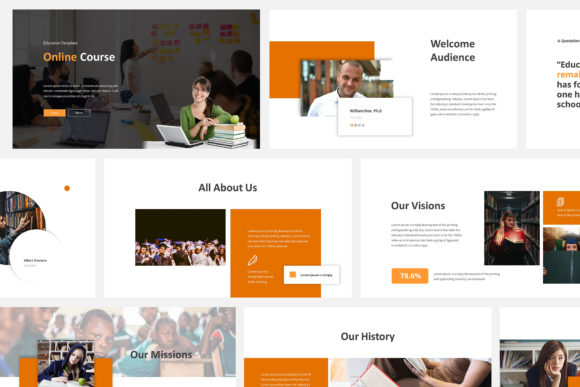
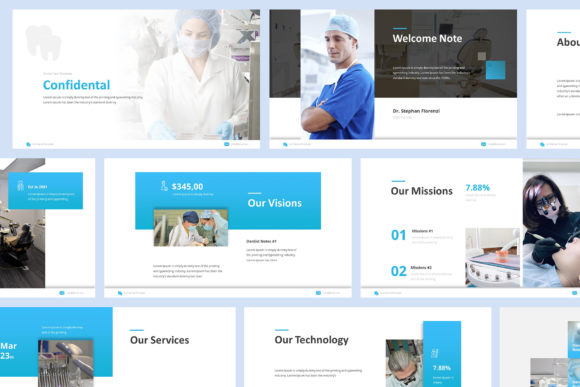
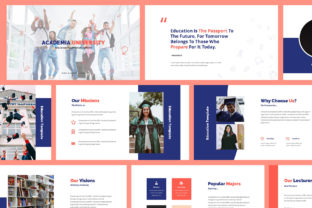
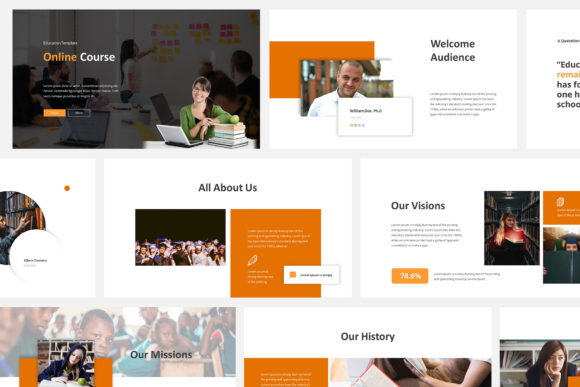
With over 30 unique, creatively designed slides, this template covers far more than basic title and bullet-point layouts. You'll find slides built for showcasing testimonials, presenting data with charts, breaking down step-by-step processes, and even creating visual comparisons. The variety means you're not recycling the same three layouts across a 20-slide deck—which your audience will definitely notice.
The retina and full HD resolution ensures everything looks crisp on screens of all sizes, from laptops to large monitors. Whether your students are watching on a projector in a co-working space or on their phone during a commute, the visual quality holds up. The widescreen 16:9 format is the modern standard, so your slides will fill the frame without awkward black bars or stretched elements.
One feature that saves significant time is the overlay picture effect. Instead of manually adjusting image transparency and layering, you can drop in a photo and the template handles the visual treatment automatically. For course creators who regularly swap out images to match different lesson topics, this alone can cut slide preparation time in half. All images are inserted with a single click through object placeholders, which means you spend less time wrestling with formatting and more time refining your actual presentation script.
Practical Applications Beyond Online Courses
While the name suggests a specific use case, this template works beautifully across a range of professional and creative contexts. Consider how it might serve you in these scenarios:
- Brand presentations: Pitch your brand story to investors, partners, or potential collaborators with slides that feel cohesive and intentional.
- Social media content planning: Use the layouts to map out content calendars, campaign strategies, or visual mood boards for clients.
- Workshop facilitation: Whether you're leading an in-person workshop or a virtual masterclass, structured slides keep your session on track.
- Product launches: Walk your audience through a new digital product, course bundle, or service offering with slides that build anticipation and clarity.
- Client reporting: Marketing agencies and freelancers can present campaign results, analytics, and recommendations in a format that feels professional rather than clinical.
- Educational resources: Teachers, tutors, and coaches can adapt the slides for lesson plans, study guides, or training materials that students actually want to engage with.
The master slide-based layouts make it easy to maintain consistency across all of these applications. Change a color on the master slide, and every slide in your deck updates automatically. This is particularly useful if you're managing multiple course modules or creating presentation decks for different clients. You establish your visual system once, then apply it everywhere.
Design Features That Save You Time
Every element in this template is built with resizable vector graphics, which means you can scale icons, shapes, and illustrations without losing quality. If you've ever tried to enlarge a low-resolution icon only to end up with a pixelated mess, you know how frustrating that limitation can be. Vector elements eliminate that problem entirely.
The fully animated slides add a layer of polish that makes your presentation feel dynamic without being distracting. Subtle entrance animations, smooth transitions, and timed reveals keep your audience's attention focused on the right content at the right moment. You don't need to know how to code animations in Google Slides—everything is pre-built and ready to customize.
Typography choices matter in any presentation, and this template uses free fonts that are widely available and easy to install. You won't run into licensing headaches or find that a font renders differently on someone else's machine. The text styles are designed for readability, with clear hierarchy between headings, subheadings, and body text. This is especially important for course content, where your audience needs to quickly scan and absorb information.
Getting Started Without the Overwhelm
One of the biggest barriers to creating great presentations is the blank slide problem. You open Google Slides, stare at an empty canvas, and suddenly the task of building a 30-slide deck feels monumental. A template removes that friction entirely. Instead of designing from zero, you're making decisions about content placement and color customization—which is the creative, strategic part of presentation building.
The included documentation walks you through customization step by step, so even if you're not a regular Google Slides user, you'll be up and running quickly. A video preview lets you see the template in action before you commit to using it, which helps you visualize how your own content will fit into the layouts.
The pixel-perfect progressive design means each slide builds on the previous one with intentional visual rhythm. Your presentation won't feel like a random collection of slides—it'll feel like a cohesive story with a beginning, middle, and end. That narrative quality is what separates a forgettable slideshow from a presentation that actually moves people to action.
Final Thoughts on Choosing the Right Presentation Tools
Your course content deserves to be presented in a way that matches its quality. A strong Online Course Google Slides Template doesn't just make your slides look better—it changes how you approach the entire presentation process. You'll spend less time on formatting and more time thinking about what your audience actually needs to hear. The free updates and fast support mean you're not left on your own after the download. And with print-ready output options, you can repurpose your slides as handouts, workbooks, or marketing materials with minimal additional effort.
If you've been putting off creating professional presentations because the design side feels overwhelming, this kind of template is exactly the shortcut that doesn't cut corners. It gives you a professional, modern foundation that you can make your own—and that's really what effective visual communication is all about.